In HRSimplified it is possible to have Employees with and without User accounts to access the system.
All Employees are created without a account when they are created. (See Creating a Employee Here)
Adding new User account to a Employee:
To Enable a user account (Access) for an Employee, navigate to the Employee profile by going to HR Administration -> All Employees section, select the Employee you would like to grant access to.
Click Edit in the Action menu and open the Employee profile.
Navigate to the Employee Tab -> Employee information Sub Tab to access the Generate User Account section.
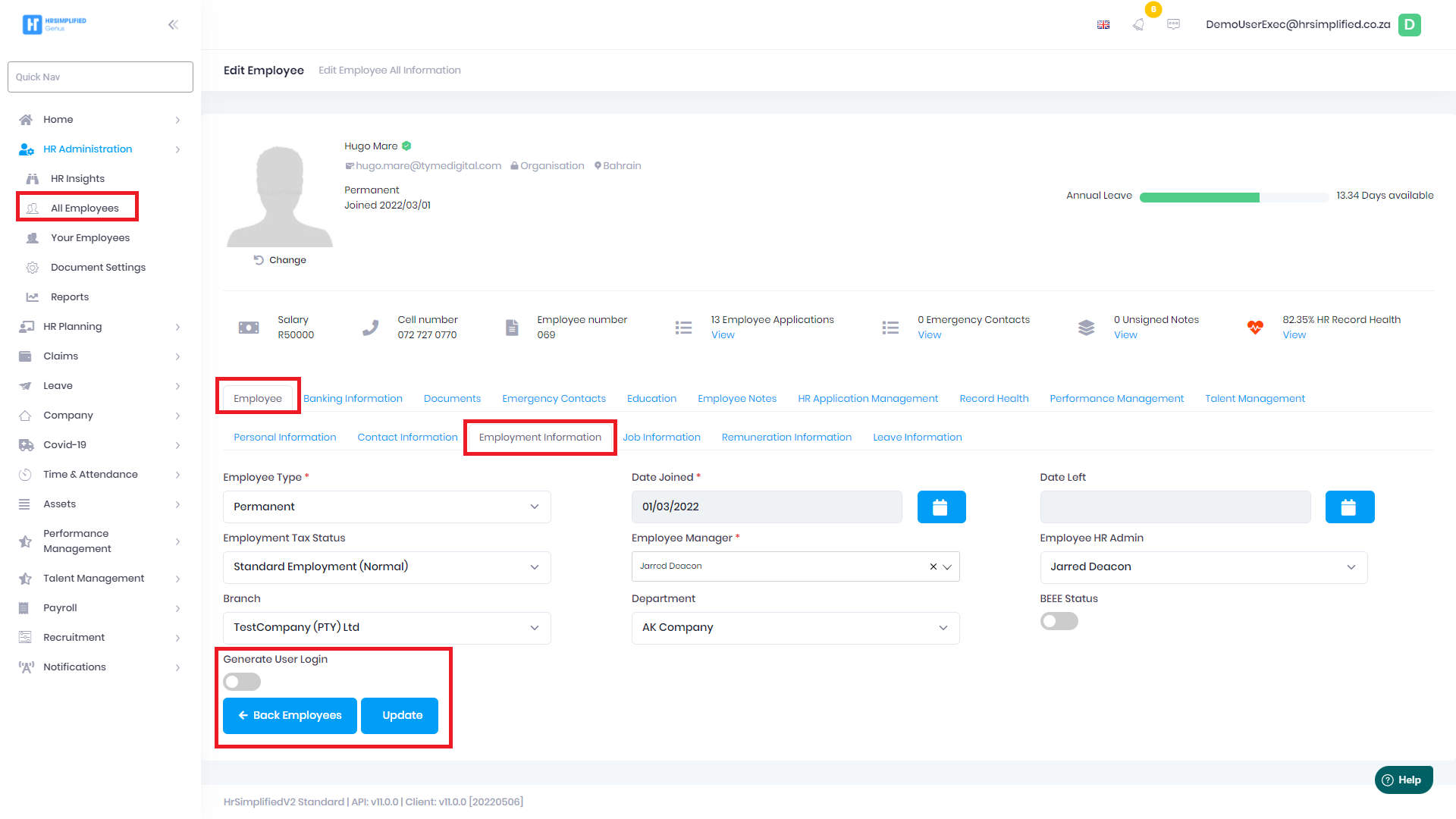
Activate the Generate User Login switch. Note that the Email address form the Contact Information section will be pre-populated as the User name (This needs to be a email).
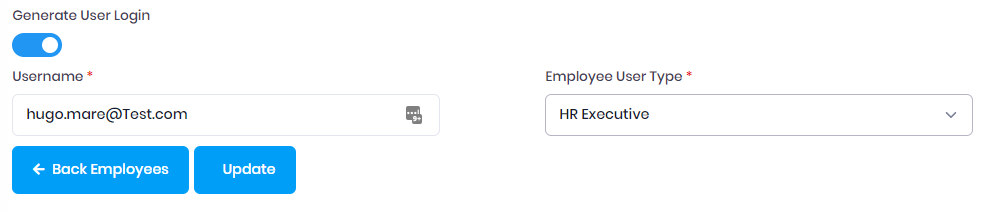
User Roles to select:
NOTE: At this point it is extremely important to allocate the correct User Type to the Employee.
The list of roles allow the user access to the different parts of the application to access data.
Below is the list of roles available in HRSimplified
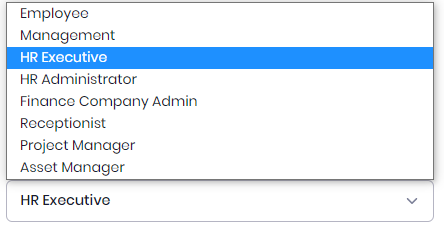
Please note that the HR Executive and HR Administrator roles have full access to all Employee data, and hence can view salary data and other personal data of all Employees. Ensure that this role is only assigned to a HR person.
For most employees they will ONLY have a Employee role, and Managers will have a Management role.
The other roles are reserved for the other Modules to action requests.
Once the Username (Email) and the Role has been finalised, simply click Update and the HRSimplified system will send a Invite email to the Employee (using their email address) to issue them the Login link, username and password they need to log in.
Resetting a Password:
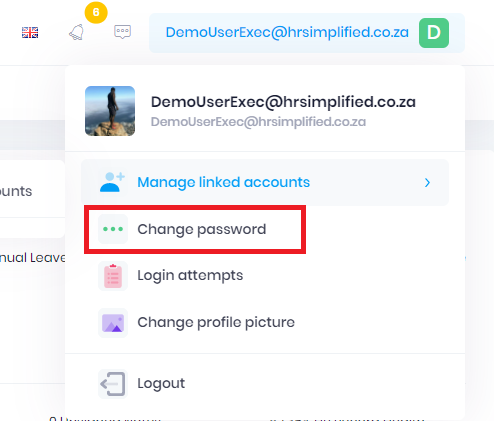
The Password is autogenerated in the system, and can be changed by the Employee by using the Forget Password feature on the Login screen, or by selecting Change Password on the Profile drop down section.
Was this article helpful?
That’s Great!
Thank you for your feedback
Sorry! We couldn't be helpful
Thank you for your feedback
Feedback sent
We appreciate your effort and will try to fix the article